
Video editing used to take hours. Today, AI cuts that time by more than half.
But here is the problem — there are hundreds of AI video tools right now, and most of them overpromise. Some are genuinely useful. Others waste your time with flashy demos that fall apart on real footage.
This guide covers 15 AI tools for video editing tested in 2026. Each tool is reviewed honestly — with pricing, real use cases, and a clear verdict. Whether you edit YouTube videos, repurpose content for social media, or work on professional film projects, you will find the right tool here.
How We Tested These Tools
Each tool on this list was tested with real footage — interviews, social media clips, long-form YouTube videos, and product demos. Testing focused on 4 factors:

- AI quality — Does the AI actually improve the output?
- Ease of use — Can a beginner use it without a tutorial?
- Speed — How much editing time does it save per week?
- Value — Is the price worth what you get?
Tools that showed strong AI results but poor value did not make the final cut.
15 Best AI Tools for Video Editing Signup, Payment, Options & Refund Policy 2026
1. Adobe Premiere Pro — Best for Complex Professional Projects
Adobe Premiere Pro leads the pack for professional video editors. The AI features run through Adobe Sensei, and they solve real problems — not just demo problems.
Generative Extend is the standout feature in 2026. It extends a clip by generating new frames at the end, so a shot that cuts too early no longer ruins your timeline. This alone saves re-shoots.
Auto Reframe tracks moving subjects and adjusts aspect ratios for different platforms automatically. Edit once, export for YouTube, Instagram Reels, and TikTok without touching the timeline again.
Morph Cut smooths jump cuts in interview footage. Delete a filler word, and the cut disappears. Viewers never notice the edit.
Best for: Video editors handling brand content, documentaries, or corporate videos regularly.
Pricing: $34.99/month (individual), $37.99/month (teams)
How to sign up: Go to adobe.com, click “Free trial,” create an Adobe account with your email, and add a payment method. The 7-day free trial starts immediately after signup.
Payment options: Credit card, debit card, PayPal. Annual plan billed monthly or upfront. Teams billing available.
Refund policy: Cancel within 14 days of your initial order for a full refund. After 14 days, the payment is non-refundable and your service continues until the end of the contracted term. Refunds process in 5–7 business days.
Verdict: High cost, but the time saved per project justifies it for professionals.
2. DaVinci Resolve — Best AI Color Grading Tool in 2026
DaVinci Resolve has offered professional color grading for years. The Neural Engine added in recent updates turned it into a serious AI editing platform.
Speed Warp creates slow-motion footage from regular clips. It uses machine learning to generate new frames — cleaner results than traditional optical flow methods.
Object Removal tracks and removes unwanted elements from shots. A microphone in the corner of a frame, a logo on a shirt, a person walking through the background — the tool handles all three accurately.
Music Remixer isolates individual elements of a soundtrack — vocals, bass, drums, guitar — and lets you adjust each separately. This feature alone is worth the upgrade.
Relight changes the lighting direction of a shot after filming. Add a virtual light source, shift shadows, or completely change the mood of a scene without reshooting.
Best for: Colorists, narrative editors, and documentary filmmakers.
Pricing: Free version available. DaVinci Resolve Studio is a one-time payment of $295 — no subscription.
How to sign up: Download the free version directly from blackmagicdesign.com — no account needed. To buy DaVinci Resolve Studio, create a Blackmagic account, add to cart, and pay via the website.
Payment options: Credit card, debit card, PayPal. One-time payment of $295 — no subscription, no renewals.
Refund policy: Blackmagic Design offers a 30-day money-back guarantee for hardware purchases. For software (DaVinci Resolve Studio), refund requests must be submitted within 14 days of purchase. Contact the nearest Blackmagic support office by email with your order details and proof of purchase.
Verdict: The one-time payment makes this the best long-term value for professional editors.
3. CapCut — Best Free AI Video Editor for Mobile and Desktop
CapCut handles the basics well and adds features that genuinely speed up editing. The desktop and mobile apps work smoothly together.
Isolate Voice separates vocals from background music in any track. This makes audio layering much easier when you cannot use the original recording.
Auto captions generate fast and stay accurate across most accents. The caption editor lets you style text to match your brand in under two minutes.
Best for: Creators making short-form content for TikTok, Instagram Reels, and YouTube Shorts.
Pricing: Free plan available. Pro plans start at $5.99/month (mobile only) or $19.99/month (mobile, desktop, and web).
How to sign up: Download the CapCut app (iOS, Android, or desktop) or go to capcut.com. Sign up with Google, Facebook, TikTok, or email. Free plan is available immediately with no payment required.
Payment options: Credit card, debit card via Stripe (web/desktop). Apple Pay via App Store (iOS). Google Pay via Google Play (Android). Currency is set automatically based on your region.
Refund policy: CapCut subscriptions are considered virtual goods and generally do not support refunds. For accidental charges or special circumstances, submit a refund appeal through CapCut support. iOS refunds go through Apple at reportaproblem.apple.com. Android refunds go through the Google Play refund portal.
Verdict: The strongest free option for creators who edit daily on mobile.
4. Clipchamp — Best AI Video Editor for Total Beginners
Microsoft’s Clipchamp removes the learning curve completely. Every AI feature works in a few clicks — no manual timeline skills needed.
Auto Cut detects and removes long pauses from recordings. Upload a raw talking-head video, click Auto Cut, and Clipchamp removes every dead second automatically.
The free plan includes all AI features with no watermark — the only tool on this list that offers this. Most competitors lock AI tools behind paid plans.
Best for: First-time video editors, small business owners creating simple explainer videos.
Pricing: Free plan includes all AI features. Premium starts at $11.99/month.
How to sign up: Go to clipchamp.com or open Clipchamp inside Windows 11. Sign in with your Microsoft account — the free plan activates instantly with no payment required.
Payment options: Credit card, debit card. Microsoft 365 subscribers may get Clipchamp included in their existing plan.
Refund policy: Microsoft’s standard digital services refund policy applies. Cancel the subscription at any time through your Microsoft account at account.microsoft.com. Refund eligibility depends on the Microsoft Store refund terms — requests submitted within 30 days of purchase are typically considered.
Verdict: Best starting point for anyone who has never edited a video before.
5. Canva — Best for Social Media Video Creation
Canva combines video editing with graphic design. The result is fast, polished social content without touching a timeline.
Magic Design generates a draft video from up to 10 clips or photos. It adds captions, transitions, animations, and background music automatically. The first draft is usually 70% ready to post.
The template library gives creators a head start on formats — Stories, Reels, YouTube intros, product demos.
Best for: Social media managers and creators who need volume — multiple videos per week without deep editing.
Pricing: Free plan with limited AI features. Pro starts at $15/month.
How to sign up: Go to canva.com, sign up with Google, Facebook, or email. Free plan activates immediately. Upgrade to Pro from your account settings or the pricing page.
Payment options: Credit card, debit card, PayPal. Monthly or annual billing. Annual plan is billed upfront at a discounted rate.
Refund policy: Canva offers refunds within 30 days of the initial charge for annual plans if the plan is unused. Monthly plans are generally non-refundable after the billing cycle starts. Contact Canva support at support.canva.com to submit a refund request.
Verdict: Not built for speech-heavy content. Strong choice for visual-first social videos.
6. Descript — Best for Interview and Podcast Editing
Descript built its entire product around one idea — edit video by editing the transcript. That idea works extremely well for spoken content.
Delete a word from the transcript and Descript removes that word from the video. No razor tool, no manual split. This turns a 45-minute raw interview into a tight 8-minute cut in under an hour.
Remove Retakes scans multiple takes of the same line and picks the best one automatically. For anyone who records presentations or YouTube videos, this removes the most tedious part of editing.
Overdub clones your voice and generates missing audio. Fix a mispronounced word without re-recording. The voice model trains on your original audio.
Automatic Multicam cuts between speakers during interviews and podcasts based on who is talking. No manual syncing needed.
Best for: Podcasters, interview creators, educators, and anyone editing dialogue-heavy content.
Pricing: Free plan includes 1 transcription hour. Pro starts at $24/month.
How to sign up: Go to descript.com, click “Get Started Free,” and sign up with Google or email. The free plan (1 transcription hour) activates immediately with no payment required.
Payment options: Credit card, debit card. Monthly or annual billing. Annual billing saves approximately 30% compared to monthly.
Refund policy: Descript provides refunds if you cancel and request within 48 hours of the invoice date. Cancellations are not prorated — your plan continues until the end of the current billing cycle. Submit a refund request to Descript’s support team with the email address linked to your account.
Verdict: Nothing else comes close for podcast and interview editing. Every spoken-word creator should try this.
7. Eddie AI — Best for Getting a Rough Cut Fast
Eddie AI positions itself as a ChatGPT for video editing. That description is accurate.
Upload footage, describe the video you want in plain text, and Eddie AI builds a rough cut. For interview content and multi-camera shoots, this saves 3 to 5 hours of initial editing per project.
The conversational interface lets you refine edits with simple prompts. Type “make it 10 minutes” or “focus on the part about pricing” and Eddie adjusts the cut instantly.
Rough cuts export directly to Adobe Premiere Pro, DaVinci Resolve, or Final Cut Pro. The AI handles the boring part — selecting, logging, and assembling. The editor handles the creative part.
Best for: Documentary editors, YouTubers with long interview footage, and teams processing high volumes of video.
Pricing: Free plan available. Plus plan at $25/month includes 5 exports per month.
How to sign up: Go to heyeddie.ai, click “Get Started,” and create an account with your email or Google. The free plan with unlimited watermarked MP4 exports activates immediately.
Payment options: Credit card, debit card via Stripe. Monthly billing on the Plus plan at $25/month.
Refund policy: Eddie AI follows a standard SaaS refund policy. Refund requests should be submitted to Eddie AI support within 7 days of the charge. Contact support through the in-app help button or via email at support@heyeddie.ai.
Verdict: Saves the most hours per project of any tool on this list for interview-based content.
8. Opus Clip — Best for Repurposing Long Videos
Opus Clip analyzes long-form videos and extracts the most engaging moments as short clips — ready to post on TikTok, Instagram, and YouTube Shorts.
Every clip gets a Virality Score — a rating that estimates how well it will perform based on hook strength, pacing, and structure. Adjust the clip, watch the score change in real time.
The platform connects directly to social media accounts. Create clips, review the virality scores, and schedule posts without leaving the platform.
One 45-minute YouTube video typically produces 6 to 10 usable short clips. That is one month of daily social content from a single recording session.
Best for: YouTubers, podcasters, and marketers who want to maximize every long-form recording.
Pricing: Free plan includes 60 credits/month. Starter at $15/month removes the watermark.
How to sign up: Go to opus.pro, click “Try for Free,” and sign up with Google or email. The free plan with 60 credits/month activates immediately.
Payment options: Credit card, debit card via Stripe (web). Apple Pay (iOS app). Billing is monthly or annual.
Refund policy: Opus Clip processes refunds through Stripe for web subscriptions. iOS subscriptions are managed by Apple — refund requests go through Apple’s refund page. To request a refund on web, contact Opus Clip support via the in-app support button (Pro users) or through the official Discord support channel. Include your Stripe invoice number in the request.
Verdict: The most efficient tool for content repurposing in 2026.
9. VEED — Best All-in-One Editor for Long-Form Content
VEED handles the full editing process — upload, transcribe, caption, style, export — in one browser window.
Eye Contact adjusts gaze direction so the speaker always looks directly at the camera, even when reading from notes. This feature works well for talking-head videos and course content.
Auto transcription accuracy ranks among the highest tested. The subtitle generator translated English captions into French accurately in under 30 seconds.
Safe zones show exactly where platform UI elements appear on TikTok, Reels, and Shorts. Place text and graphics without worrying about captions covering the action button.
Best for: Course creators, marketers, and long-form YouTubers who want one tool for everything.
Pricing: Free plan available with watermark. Lite plan at $24/month removes the watermark.
How to sign up: Go to veed.io, click “Get Started,” and sign up with Google or email. The free plan with watermarked exports is available immediately with no payment required.
Payment options: Credit card, debit card. Monthly or annual billing. Annual billing offered at a discounted rate.
Refund policy: VEED typically does not offer refunds for subscription cancellations. Cancel anytime through your account billing settings — your plan continues until the end of the current billing cycle. For billing errors or accidental charges, contact VEED support at support@veed.io.
Verdict: Strong all-rounder. The Eye Contact feature alone makes it worth testing.
10. Kapwing — Fastest AI Video Editor Available
Speed separates Kapwing from every other tool on this list. Uploading, transcribing, editing, and exporting all happen faster than comparable tools.
Dubbing and lip sync respond quickly. Multi-track editing with no noticeable lag. For editors working across 10 to 20 videos per week, this speed difference adds up to hours saved.
Best for: High-volume content teams who edit multiple videos daily.
Pricing: Free plan available. Pro at $24/month for individuals and teams.
How to sign up: Go to kapwing.com, click “Get Started,” and sign up with Google or email. The free plan activates immediately.
Payment options: Credit card, debit card via Stripe. Monthly or annual billing. Teams billing available per user.
Refund policy: Kapwing offers refunds for eligible requests submitted within 7 days of the charge. Annual plan refunds are considered on a case-by-case basis. Contact Kapwing support at kapwing.com/contact to submit a refund request with your account email and invoice number.
Verdict: Best choice for teams where editing speed directly affects publishing output.
11. Wondershare Filmora — Best for Creators Who Want More Control
Wondershare Filmora sits between beginner tools and professional suites. It offers AI features without the steep learning curve of Premiere Pro.
Beat Detection marks every beat of a song on the timeline automatically. Cut to the music without counting beats manually.
AI Smart Cutout removes objects from scenes by painting over them. Auto Synchronization aligns audio and video from separate recordings without manual syncing.
Best for: Growing YouTubers and creators who have outgrown CapCut but are not ready for Premiere Pro.
Pricing: Free plan with limited features. Paid plans start at $49.99/year.
How to sign up: Go to filmora.wondershare.com, download the software for Windows or Mac, install it, and create a Wondershare account. The free version is available immediately with no payment. Upgrade to a paid plan from inside the app or on the website.
Payment options: Credit card, debit card, PayPal. Annual or perpetual license options available. Monthly, annual, and cross-platform plans offered.
Refund policy: Wondershare offers a 30-day money-back guarantee on annual plans purchased directly from wondershare.com. The product must not have been used extensively. Submit a refund request through the Wondershare support portal at support.wondershare.com within 30 days of purchase. Refunds process in 3–5 business days.
Verdict: Solid mid-range option. The beat detection feature works better than most professional tools.
12. Google Veo 3 — Best AI Video Generator in 2026
Google Veo 3 generates video from text prompts and image references. The results include synchronized audio — background sounds, dialogue, and ambient noise generate alongside the video automatically.
Prompt adherence is stronger than competitors. Describe a specific shot — lighting, camera angle, subject movement — and Veo 3 follows those instructions accurately.
Add dialogue to the prompt and the model generates lip-synced speech with realistic voice quality. No separate audio tool needed.
Best for: Marketers, YouTubers, and creators who need B-roll, product visuals, or stylized footage without a camera.
Pricing: 100 free credits/month. Google AI Pro at $19.99/month offers 1,000 credits. Google AI Ultra at $249.99/month removes the watermark.
How to sign up: Go to gemini.google/subscriptions, sign in with a personal Google account, and subscribe to Google AI Pro ($19.99/month) or Google AI Ultra ($249.99/month). Veo 3 is accessible through Google Flow at labs.google/fx/tools/flow after subscribing.
Payment options: Credit card, debit card linked to your Google account. Monthly billing only. Google Pay supported.
Refund policy: Cancel anytime. No refunds for partial billing periods, except as required by applicable law. Cancel through your Google account subscription settings at myaccount.google.com before the next billing date to avoid the next charge.
Verdict: The most reliable AI video generator available right now.
13. Runway Gen 4 — Best for Cinematic AI Video
Runway Gen 4 produces cinematic-quality footage from text and image prompts. The model understands film concepts — camera choreography, timing, lighting — not just visual descriptions.
Act Two transfers human performances to AI characters. Film a real actor, upload the recording, and Runway maps their facial expressions and body movements onto any generated character.
Aleph edits existing footage with text prompts. Change the weather in a shot, reframe a scene, or replace a specific object — without reshooting.
Best for: Filmmakers, creative directors, and video production teams.
Pricing: Free plan with 125 one-time credits. Standard at $15/month includes 625 monthly credits.
How to sign up: Go to runwayml.com, click “Sign Up,” and create an account with Google or email. The free plan with 125 one-time credits activates immediately with no payment required.
Payment options: Credit card, debit card via Stripe. Monthly or annual billing. Annual plan billed upfront at a discounted rate.
Refund policy: Refunds are available if you purchased or renewed within the last 30 days and the subscription is unused or close to unused, as determined by Runway. Credits purchased within the past 30 days that have not been used are also eligible. Initiate a refund request using the help icon in the top-right corner of your dashboard. Runway’s AI assistant determines eligibility automatically.
Verdict: Best AI video tool for cinematic work. The learning curve is real but worth it.
14. Sora 2 — Best for Story-Driven AI Video
Sora 2 from OpenAI generates video from story prompts rather than descriptive instructions. Write a narrative — characters, setting, emotional arc — and Sora 2 produces a multi-shot sequence with audio.
Storyboard mode lets creators sequence multiple scenes and maintain character consistency across clips. This solves the biggest problem with AI video — characters changing appearance between shots.
Best for: Storytellers, ad creators, and content teams producing narrative video.
Pricing: Included with ChatGPT Plus at $20/month (watermarked, 720p). Pro at $200/month removes the watermark and increases quality to 1080p.
How to sign up: Go to sora.com or openai.com, sign up with email or Google, and subscribe to ChatGPT Plus ($20/month) to access Sora 2 at 720p with watermark. Subscribe to ChatGPT Pro ($200/month) to remove the watermark and access 1080p.
Payment options: Credit card, debit card. Monthly billing. Apple Pay available on iOS. No annual plan currently offered for ChatGPT Plus.
Refund policy: OpenAI does not offer prorated refunds for unused subscription time. Cancel anytime through your account settings at platform.openai.com/account/billing — your access continues until the end of the billing cycle. For billing errors, contact OpenAI support at help.openai.com within 30 days of the charge.
Verdict: Strongest narrative AI video generator. Needs a US or Canada account to access the full Sora app currently.
15. Topaz Video AI — Best for Rescuing Bad Footage
Topaz Video AI upscales, denoises, and restores video footage using deep learning models trained on thousands of video samples.
4K upscaling converts 1080p footage to 4K with minimal artifacting. Slow motion interpolation generates new frames to create smooth slow motion from footage not shot at high frame rates.
This tool does not replace a proper edit. It rescues footage that would otherwise be unusable — low-light clips, archival material, or older recordings shot at low resolution.
Best for: Video archivists, documentary editors working with historical footage, and creators who need to upscale older recordings.
Pricing: One-time purchase. Check current pricing at topazlabs.com.
How to sign up: Go to topazlabs.com, click “Buy Now,” create a Topaz Labs account, and complete the purchase. Topaz Video AI is sold as a one-time software license — no ongoing subscription.
Payment options: Credit card, debit card, PayPal. One-time purchase. No monthly fees. Updates and new versions may require an additional upgrade purchase.
Refund policy: Topaz Labs offers a 30-day money-back guarantee on all software purchases made directly from topazlabs.com. The software must not have been used for commercial work extensively. Submit a refund request to support@topazlabs.com within 30 days of purchase with your order number. Refunds process in 5–10 business days.
Verdict: Niche but irreplaceable for its specific use case. Nobody else does upscaling at this quality.
The Full AI Video Stack — How These Tools Work Together
No single tool handles everything. The strongest workflow in 2026 combines 4 to 5 tools:
Record → Clean Audio with Adobe Podcast → Rough Cut with Eddie AI → Caption and Polish with VEED → Repurpose with Opus Clip → Schedule with Buffer
This stack takes a single 30-minute recording and turns it into a polished long-form video, 6 short clips, and a month of social content. Each tool handles one specific job.
For creators on a $0 budget, this free stack covers the basics:
Record → Edit with Clipchamp → Captions with CapCut → Short Clips with Opus Clip (free plan)
Free vs Paid — 2026 Pricing Comparison
| Tool | Free Plan | Paid From | Watermark-Free |
| Clipchamp | Yes — full AI features | $11.99/month | Yes (free) |
| CapCut | Yes — limited | $5.99/month | Paid only |
| Canva | Yes — limited AI | $15/month | Paid only |
| Descript | Yes — 1 hour transcription | $24/month | Paid only |
| VEED | Yes — watermarked | $24/month | Paid only |
| Opus Clip | Yes — 60 credits/month | $15/month | Paid only |
| DaVinci Resolve | Yes — full features | $295 one-time | Yes (free) |
| Eddie AI | Yes — unlimited MP4 | $25/month | Paid only |
| Google Veo 3 | Yes — 100 credits/month | $19.99/month | Paid only |
| Runway | Yes — 125 one-time credits | $15/month | Paid only |
3 genuinely useful free options with no watermark: Clipchamp, DaVinci Resolve, and the free MP4 exports in Eddie AI.
Which Tool Should You Use?
Pick based on what you actually create:
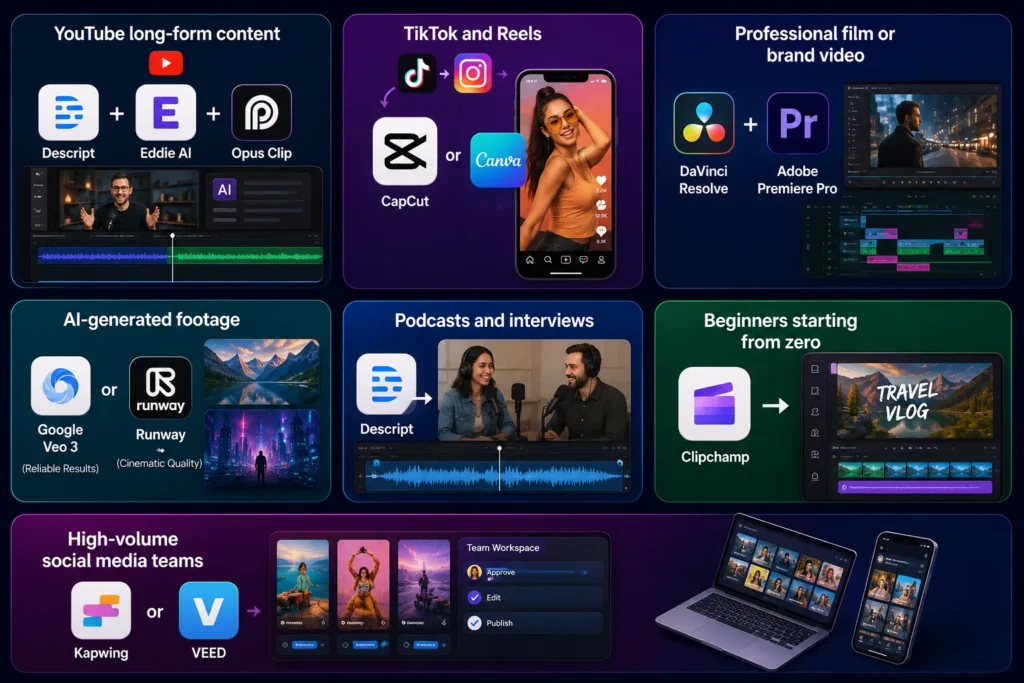
- YouTube long-form content → Descript + Eddie AI + Opus Clip
- TikTok and Reels → CapCut or Canva
- Professional film or brand video → DaVinci Resolve + Adobe Premiere Pro
- AI-generated footage → Google Veo 3 for reliable results, Runway for cinematic quality
- Podcasts and interviews → Descript
- Beginners starting from zero → Clipchamp
- High-volume social media teams → Kapwing or VEED
Conclusion
AI video editing is not the future anymore. It is the present — and it is already separating fast creators from slow ones.
The 15 tools in this guide cover every part of the video production process. Professionals get better results faster with Adobe Premiere Pro and DaVinci Resolve. Beginners get a clean starting point with Clipchamp and CapCut. YouTube creators cut editing time in half with Descript and Eddie AI. Social media teams publish more with VEED and Opus Clip.
None of these tools require you to be a technical expert. Most have free plans. All of them solve a real problem that video editors face every week.
The biggest mistake creators make is spending money on tools before testing them. Every tool on this list has a free plan or free trial. Test 2 or 3 tools on your next video before committing to a paid plan.
AI handles the repetitive work — rough cuts, captions, noise removal, repurposing. Your job stays the same — make content worth watching. These tools just help you make it faster.